Translate

Selasa, 15 April 2014

Tutorial Photoshop [ Drawing Fire ]


When You open Your photo in Photoshop make first step: Image -> Adjustments -> Desaturate (Shift + Ctrl + U). That will be our base image (I'll resize it to 450x600 px for presentation - You may work with larger image if You want or just use this bellow if You don't want to register on sxc.hu).
Hands


Now we will add a Adjustment Layer called Levels. Hold Alt Key, and click on Adjustments Layer button on Layers Palette. Select Levels. Make Sure that Use Previous Layer to Create Clipping Mask is sellected. Then just slide dark arrow a little right.

Levels

As You can see - image is a little darker now. Now we will draw some fire. Make New Layer,  select soft brush of the size You will choise, and using dark orange colour (for example #993300) make a "dot". Next use a smaller size with lighter colour (like #ff9933) make another dot. Again, smaller size, lighter colour (for example #ffcc66), and last time, smaller size, lighter colour (#ffff66) and dot.

Fire dot Now it's time for a little "magic". Use Smudge Tool (R). Pick small, soft size, and make "fire tongues". Just click somewhere inside our dot, click, hold and drag it up. After first move You will know what I'm meaning. Try untill You will be satisfied. Remember that You may change the Strenght parameter. You will use Alt + Ctrl + Z combination lot of times!
Fireball

Now lets make this fire more realistic by adding some light on hands. Go to Quick Mask Mode (Q), select big, soft brush, and "draw" there, where You think that the light should appear.

Quick Mask
Leave Quick Mask Mode (Q), You will see a sellection. We have to inverse it by Select -> Inverse (Shift + Ctrl + I).  Select our Hands Layer, and holding the Alt key add another Adjustment Layer called Color Balance (Use Previous Layer... should be sellected)

Color Balance

Now select our Color Balance Adjustment Layer Mask, and using black soft brush "erase" some lights, and using white - add some lights until You will feel that it looks good.

Lights

Next thing will be smal sparks. We have to prepare brush for this operation.
Brush
With those settings draw some sparks over our fire (on New Layer). Lower the Opacity of this layer (in my case it is 64%). Use orange colour picked from our fireball (just improvise).

Sparks

Change again to regular soft brush, use #ffffcc colour (or similar light yellow), select our fireball layer, and make a bright dot inside of it (just for better effect).

Manipulation Photoshop [ Alien Effect ]


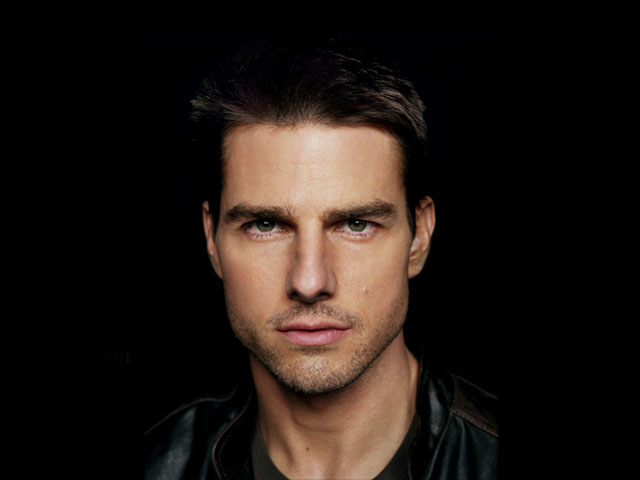
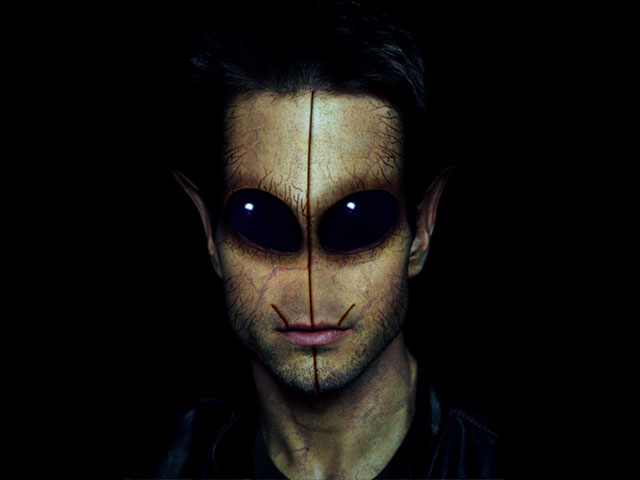
  1. Go to File > New (Ctrl+N) to create a new file. Make sure that you have your background settings to Transparent. Now search for a portrait on your PC to use and add it to your newly created file. For this tutorial I used a picture of Tom Cruise to alienize (Source file Tom Cruise). Ofcourse you can use a picture of your friend, a family member or even yourself.
    Alienize view 1
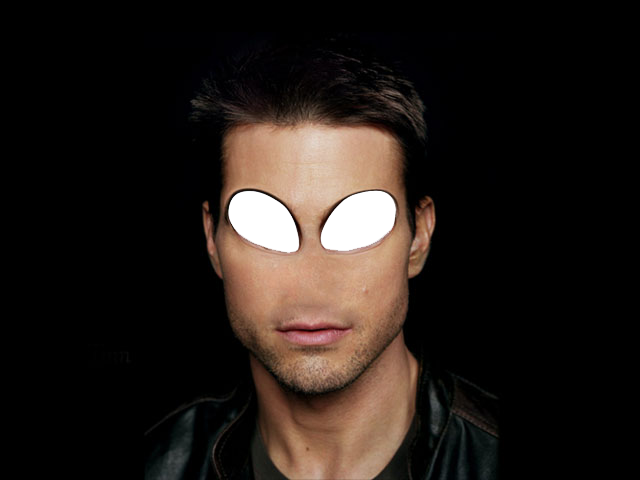
  2. Grab the Eraser Tool (E) and erase the eyes. Now use the Clone Stamp Tool (S) to clone parts of the cheeks over the nose. It'll look like the nose is erased. Use the Healing Stamp Tool to fix any not natural looking parts on the place where the nose first was.
    Alienize view 2
  3. Go to Filter > Liquify Tool (Shift+Ctrl+X) and a new window will show. Use the Forward Warp Tool (W) in this window to strech out the empty place where the eyes first were. I used a brush with a size of approxamitely 30 pixels. Strech it untill it has the shape of an alien eye. Press OK to accept the changes.
    Alienize view 3
  4. I used some alien eyes that I created before (Source file Alien eye) and pasted them in the layer behind the face. Scale the eye using Transform (Ctrl+T) untill it's at a right size. Use the Burn Tool (O) to make the areas around the eyes a little bit darked so it will look more realistic.
    Alienize view 4
  5. Open up the liquify tool by going to Filter > Liquify Tool (Shift+Ctrl+X). Again, use the Forward Warp Tool (W) and strech out the ears. This time I used a brush with a size of 90. Press OK to save the changes and if you want, use the Burn Tool (O) to darken parts of the ears.
    Alienize view 5
  6. Get ready to change some colours using Color Balance (Ctrl+B). Play around with the Color Balance and Tone Balance untill you think you have something alien-like. I used these settings:
    1. Shadows: 0,20,0
    2. Midtones: 0,20,0
    3. Highlights: 0,40,0

    Alienize view 6
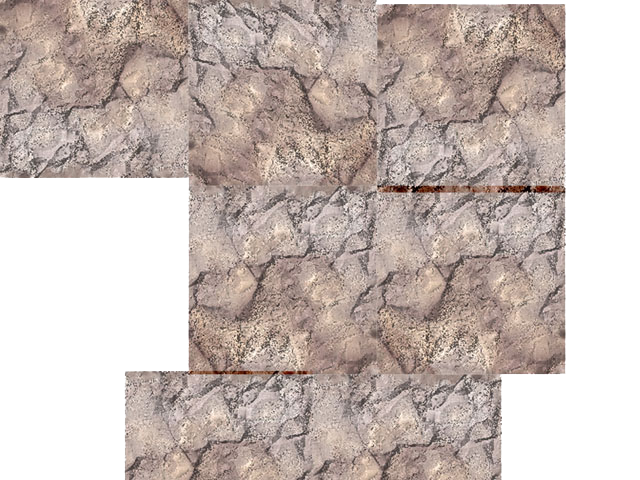
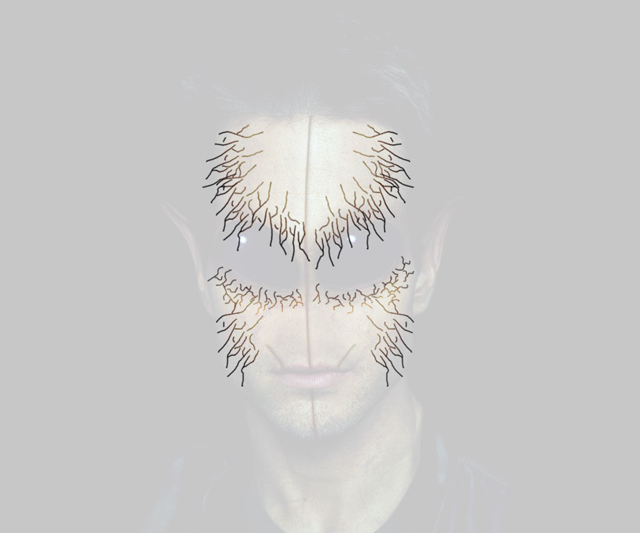
  7. Grunge your face. You can use several options for this, for example you could use a grunge brush. Here I used a pattern that I had on my PC (Source file Grunge Pattern). On a new layer, cover the face with the whole grunge pattern using Transform (Ctrl+T) or copy-pasting the pattern next to eachother (See left image below). Set the Blending Mode of the grunge layer to Color Burn and the Opacity around 25%.
    Alienize view 6.5 Alienize view 7
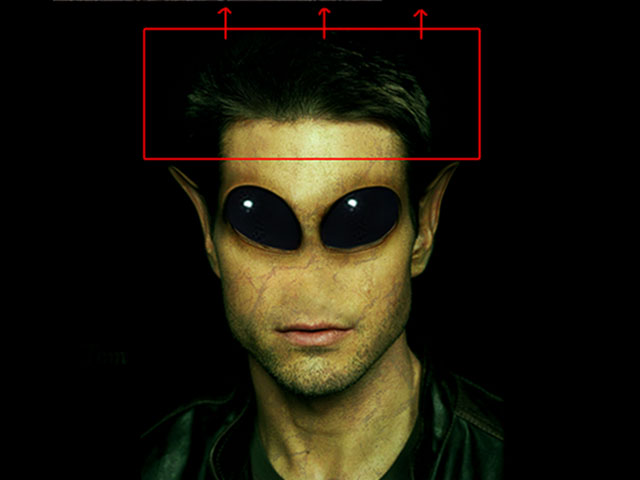
  8. Use the Rectangular Marquee Tool (M) and select the forehead of the face (See left image below). Duplicate layer part (Ctrl+J) and grab the Free Transform Tool (Ctrl+T). Strech the forehead by selecting the middle square and drag it upward. Merge layers (Ctrl+E) (See middle image below).
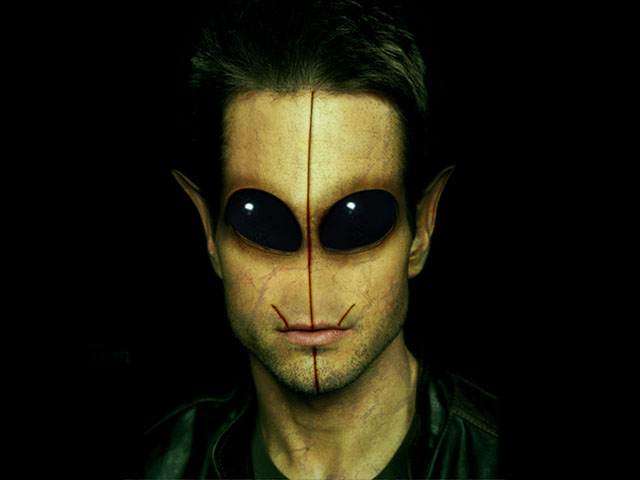
    Draw facial lines on a new layer using the Brush Tool (B). These lines can be used for detail. Select the lines on the layer and go to Blending Options. In this new window, go to Bevel and Emboss. Use the standard settings but change: Style: Pillow Emboss. I used these values:
    1. Depth: 51%
    2. Size: 1px
    3. Soften: 1px
    When satisfied, press OK to save the settings. Grab your Burn Tool (O) and burn the lines so that it'll look more realistic (See right image below).
    Alienize view 7.5 Alienize view 7.6 Alienize view 8
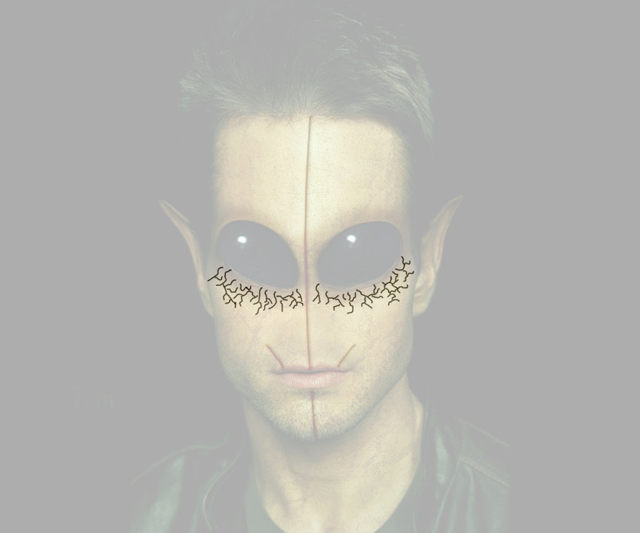
  9. Create a new layer (Ctrl+Shift+N). Draw some veins around the eyes using the Brush Tools (B). I used a brush size of 2 pixels (See left image below). Select the content of the veins layer by Ctrl+Click on the image of the layer. Now you should have the veins selected. Select the layer of the face by clicking on it. Now duplicate the selection of the veins (Ctrl+J). You should get a new layer on top of the layer of the face. Delete the layer with the veins that you drew. Now go back to the layer with the outer lines of the veins. Give them color by opening the Color Balance (Ctrl+B). Play around untill you're satisfied with the colors. Give the layer Soft light or Hard Light to give it more effect. Merge all layers back together (Ctrl+E). Open up Color Balance (Ctrl+B) again and play with the full colors of the image (See right image below).
    Alienize view 8.5 Alienize view 9
  10. Repeat the previous step, but now create some veins on the head (See left image below).
    Alienize view 9.5 Alienize view 10
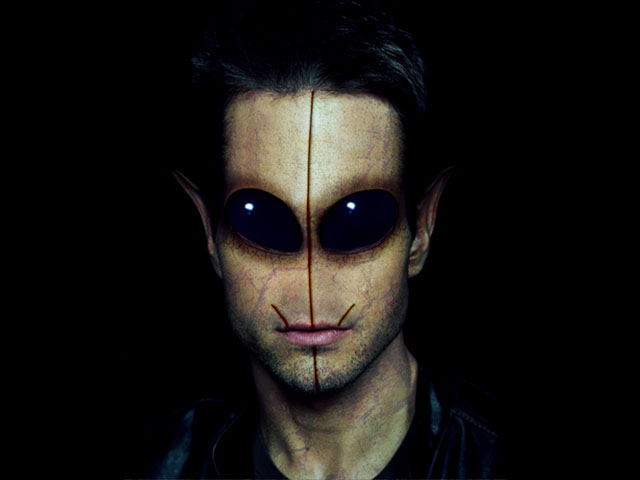
  11. Adjust the levels of the image by opening the Levels panel (Ctrl+L). Change the levels of the image untill you have a nice, realistic looking face.
    Alienize view 11
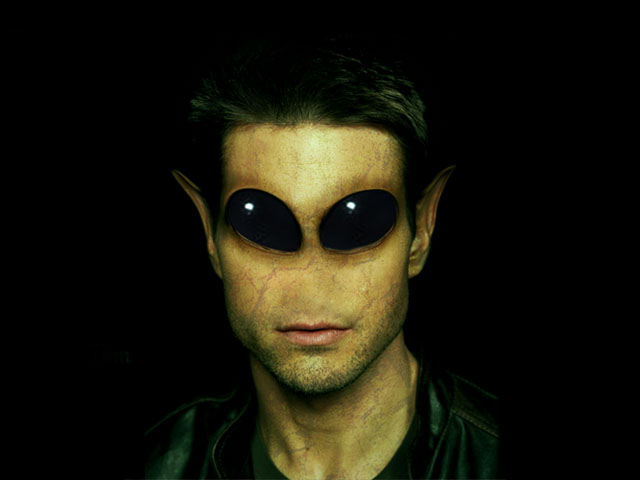
And there you have it, your own created alien. This is my final result. Be creative and feel free to post your final result in the comments.

Tutorial Photoshop [ Devil's Eye ]


Well first off you need an eye to work on(get a big and high resolutioned one). Or you can grab this one.

First duplicate the eye layer(and work on the
duplicated one so you can toogle back and forth later, and see the changes),to do this go to your "layer/channels/paths" window,right click the word background and chose "duplicate layer". I marked the window with red.


Then select the burn tool and set it's range to midtones
and exposer to 35%(the burn tool is labeled 1 and its options are circled), then burn all around the edges of the iris(the start of the eye, the colored part not the white part) till it's almost black but not quite black,then increase the size of the brush and burn the
pupil(the black part of the eye)

it should resemble this now.

Then use the burn tool around the
whole eye(right on the eyelash line) and apply it like eyeshadow till
it starts to look heavy and dark,
like this,

Then grab the dodge tool set its range to midtones and its exposer to 35%(this is the same place the burn tool is located,just right click the burn tool icon and click on the dodge tool or you can hold down the ALT key while you burn and instead of burning it will dodge) and go inside/inbetween of the iris and pupil and make it glow.


Now create a new layer(to do this go to your "layers/channels/paths" window and click on the icon I circled
and set the blending mode to color(to do this you make sure that the new layer is active or highlighted blue, and at the top of the layers channel you'll see a box with an arrow pointing down and inside
the box it will read "normal" click on it and a list of options will come up, change "normal" to "color"(is it all the way towards the bottom) click it, and reduce the opacity(it is located at the right of the box you just changed) of that layer to 50%, now get a nice bright
color(on your tools just double click on the top color box),now click the paintbrush tool make the mode of brush normal and set the opacity of it(the brush) to 100 and the flow to 100 and choose a brush size so that it fits inbetweeen the iris and the pupil(and keep all the sizes of the brush to a rather soft edge)and paint inside of it(I chose an orange/yellowish color).


Now click on to your "background copy" layer again and select your dodge tool again and go right around the edge of the pupil(with a very small brush) a few times.
To get this,

Then increase the brush size and go all around and inbetween the iris and pupil where you colored.


With the "background copy" layer still active, go to
"filter-render-lighting effects" and click it,you'll see a diagram of your eye,now make the light come from the top of your eye(this is the only way I can explain it,you'll see an oval with four little squares and it will have a mouth like pacman)(LOL),the mouth of pacman is the focal point of light,put the mouth/slit above the top of the eye or any direction you think it looks best,now for the rest of the diagram,(lots of stuff huh?) well don't let it all scare ya(we will be out of this window in a jiff), you'll see two boxes to the right, pick the top one and change the color to a dark/pale looking color(I chose a dull orange)and hit ok.
This is the reaction

Now your eye should look pretty creepy about now, but if it looks to colorful you can try this: with your background copy layer still active go to "create new fill or adjustment layer" I circled it here

(that is located right under
your background and layers pallet and looks like a "ying yang" sort of, it is a circle that is halved and is black on one side and white on the other), click it and go to hue/saturation and click that,now go to the saturate and decrease it till you have a more likable product and hit
ok.
You should have something like this now.


Now go to your color layer and make it active(highlighted blue),with it active hover your hand/arrow over the square(the little picture of your color layer) and hold the control button down and click it(you'll see in the main picture(the big one)that the color you have painted in is now selected with the little ants(the little moving things that make you know that you have selected something), now as before click on "create new fill or adjustment layer" then click on the brightness/contrast one,increase the contrast some and decrease the brightness some till you get something you like and click ok. I kinda liked this option. :)

Now if you don't like the color you can change it,just hover your hand/arrow over the color layer you made and control click it again(you will see the ants dancing again on the main picture),and go to the "create fill or adjustment layer" then go to hue/saturation and use your hue slider bar till you get your prefered color and click ok. And there you have it an evil eye! Sorry for all the long drawn out explaining but it may be necessary for some people(I know I could have used it in some of the tutorials I've tried). This tutorial is aimed at the begginer(like myself) so they can more fully comprehend and understand. (P.S. if you have any questions just ask and I will try to explain it some more).

Tutorial Photoshop [ Watercolor Effect ]


Step 1

Open an image, I will use this image because it suit to my tricks.

Step 2

CTRL + J, duplicate the image. Now you will have a layer which labeled as “layer 1”. SHIFT + CTRL + U, desaturate the image and you will get something like this:

Step 3

CTRL + J again to duplicate layer 1 and you will get a new layer which labeled as “layer 1 copy”. CTRL + I to invert the layer and set the layer blend mode to Color Dodge. Go to filter > other > minimum > 1. Double click on layer 1 copy to bring out the blending option. ALT + left click on the triangle and set the underlying layer as below:

Step 4

CTRL + E to merge up both layers. CTRL + J, duplicate layer 1. Select layer 1 copy and go to filter > blur > Gaussian Blur > radius 6. Set the layer blend mode to linear burn. CTRL + J on layer background and put the layer background copy at the top of all layer and set the layer blend mode to color.

Step 5

Hope you are still with me. Select layer background copy and add a layer mask, fill it with black color.

Step 6

Still with the layer background copy, go to image > adjustment > curve and set as below.

Step 7

Create a new layer and put it top of all layer. Fill it with #ffecd1. Set layer blend option to linear burn.

Step 8

We are nearly there, now select layer 1 and set the opacity to 60% or whatever you think suitable. Select the background copy layer’s mask, with a 45px soft brush, opacity 65%, brush the face area. Here is it!
The difference:
 
Design by Free WordPress Themes | Bloggerized by Lasantha - Premium Blogger Themes | Online Project management